



PDUSU Semester Results Are Out: Here’s How to Check Your BSc, BBA, BCA, and BCom Status
PDUSU Semester Results Are Out: Check Your BSc, BBA, BCA, and BCom Status
Where can you check your PDUSU semester result, and how can you tell it belongs to your course and exam? The university’s result portal lists BSc, BBA, BCA, and BCom options, including second- and fourth-semester results. A news report says those semester results were released on September 25, 2026.
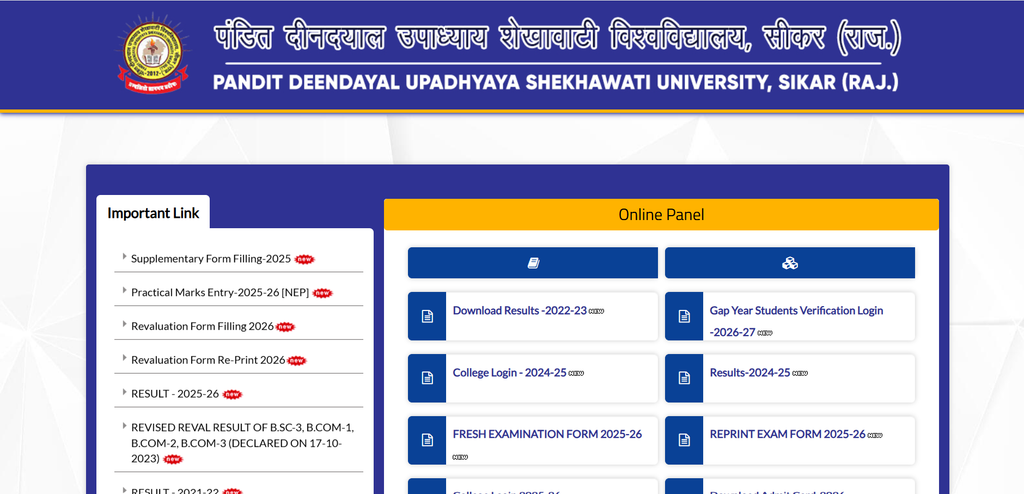
Start at the official PDUSU Results page or use the result link provided there. Third-party pages may show old links or incomplete updates, so don’t enter your roll number or date of birth on a site you can’t verify. The steps below explain how to find the right listing, review your result, and respond if it’s missing or unexpected.
Check your PDUSU semester results on the official portal
The PDUSU result portal lets students search by course and exam details. The current page includes BSc, BBA, BCA, and BCom semester options, along with other courses. The reported release includes the second and fourth semesters, but check the portal for your exact exam.
Open the university’s official results page
Visit the university website and open Student Corner, then Result. The Results page has a “Click Here to View” link that leads to the result service. You can also open the verified result portal directly, but make sure its address matches the link from the university site.
Avoid search-result ads and unofficial sites that ask for personal details. If a result page looks different from the university portal, return to the official site and follow its link.
Select the correct course, semester, and examination
On the result portal, use the Year Part field to choose your course and semester. Options use labels such as “B.SC SEMESTER II,” “B.B.A. SEMESTER IV,” and “B.COM SEMESTER II.” Read the full label before moving on; a matching course with the wrong semester won’t show your exam result.
The page also asks you to choose a Result Type, with options including MAIN and REVAL. Select the type that matches your exam or application. Don’t assume that every course and semester has a result available just because it appears in the menu.
Enter your details and view the result
The current page asks for your roll number, date of birth, and CAPTCHA code. Enter each detail as it appears on your admit card or exam record, then submit the form. If the page doesn’t respond, wait before trying again to avoid sending repeated requests.
Find the right PDUSU result for BSc, BBA, BCA, or BCom
Course labels can look similar, especially when several undergraduate results appear together. Check the program name and semester in the dropdown before entering your details. The portal lists separate options for BSc, BBA, BCA, and BCom, so choose your own program rather than relying on a general undergraduate listing.
Check BSc semester and subject details
For BSc, confirm that the selected label says B.SC and shows the semester you took. Once the result opens, compare the subjects with your exam record, including any papers that had practical or theory components. If a subject is missing or appears unfamiliar, save the result and ask your college or the university’s examination office to check it.
Confirm the BBA or BCA result listing
BBA and BCA students should select B.B.A or B.C.A in the Year Part field. The portal has distinct options for both programs, so don’t use a BCom or BSc listing even if the semester number matches. Check whether you sat the second- or fourth-semester exam before opening the result.
Verify the BCom result and exam session
Choose B.COM and the semester that matches your exam. If the portal has separate MAIN and REVAL result types, pick the one that applies to your attempt. Check the result against your exam documents before treating it as your final status.
Read your PDUSU marksheet and result status correctly
After the result appears, take a moment to check the whole page. Confirm your personal details, course, semester, and exam type before focusing on marks or status. If the portal or an official notice defines an abbreviation, follow that explanation rather than guessing what it means.
Match your personal and examination details
Check your name and roll number first, then confirm your course and semester. A wrong digit in a roll number or a mismatch in the selected exam can lead to the wrong record. Report errors through the university’s official contact or examination channel and include the details needed to identify your exam.
Review subject marks and the overall result
Compare each subject entry with the papers you took. Look for missing subjects, marks that seem incomplete, or an overall status that needs clarification. Don’t interpret an unfamiliar code on your own; check the result notice or ask the university what it means.
The portal notes that results for students with pending backlogs may be withheld until the related backlog exams are cleared. If you see no result or an unexpected status, check whether that note applies before assuming the portal has an error.
Save a copy and check the original marksheet process
Download or print the online result for your records, if the page offers that option. Keep a copy of the result with your admit card and any follow-up messages. For the official marksheet, follow PDUSU’s current instructions; the university has also posted a marksheet-collection notice for the 2025–26 session.
Fix common problems when checking a PDUSU result
A slow page or missing result doesn’t always mean your record is wrong. The portal may be busy, the result may not be available for your exam, or the details entered may not match. Check the official site and notices before trying an outside link.
Try again if the portal is slow or unavailable
Use a stable internet connection and reload the official page after a short wait. If the page freezes after you submit the form, avoid repeated attempts right away. Return later and try again, especially during busy result periods.
Recheck details if no result appears
Confirm that your roll number and date of birth match your exam documents. Then check the course, semester, and result type you selected. If the result still doesn’t appear, look for a university update that confirms the result is available for your exam.
Contact the university about missing or incorrect information
Use the contact or help details listed on PDUSU’s official website, or ask your college to direct your question to the right office. Keep your roll number, course, semester, and exam session ready. A screenshot of the issue can help explain what happened, but avoid sharing it publicly if it shows personal details.
Take the right next step after your result is released
Your next step depends on the result and the rules for your exam. PDUSU may post separate notices for revaluation, scrutiny, or supplementary exams. Check the latest official update for eligibility, fees, forms, and deadlines before applying.
Check official notices for revaluation or scrutiny
If you think a mark needs review, read the notice for your course and exam session. The notice sets the application steps, fee, deadline, and any eligibility rules. Don’t rely on a date from an older notice or a third-party page.
Ask about supplementary or back-paper examinations if needed
If your result shows that further exam work may be required, check PDUSU’s current examination notices for the relevant rules and dates. The portal’s note says pending-backlog results may be withheld until the related exam is cleared. Confirm your own case with the university or your college.
Keep result documents and updates together
Save your result, the notice that applies to your exam, and any application confirmation in one place. Keep copies of messages sent to the university as well. These records make it easier to follow up if a correction or review is still pending.
Confirm your PDUSU result, then follow the official instructions
Use the official PDUSU portal, select the exact course and semester, and enter the details shown on your exam documents. Check your identity details, subject entries, and overall status before saving a copy. If anything is missing or unclear, check the latest university notice and contact the official examination channel.